
Google Shopping Ads: A Simple Guide for Online Stores
Type “linen bedsheets king size” into Google and look at the top of the page. That strip of little tiles with a photo, a price and a shop name under each one? Those are Google Shopping ads. You’ve scrolled past hundreds of them.
For a good number of the online stores we work with, Shopping quietly becomes the most reliable thing in the whole ad account. It’s also the one that baffles new store owners the most, and almost all of that confusion comes from a single word: feed. So I’m going to keep this practical and skip the jargon where I can.
How do Google Shopping ads work?
You don’t write them, which surprises people. You give Google a spreadsheet-style list of your products (the “feed”) through Merchant Center, with titles, prices, photos and so on. Google then builds the ads itself and decides which searches to show them on.
Google’s own About Shopping ads page has the official version, including the different places they can show up. And if you’re the sort of person who likes knowing how something came to be, the Wikipedia page on Google Ads covers how the whole platform grew.
The thing that throws people coming from search ads is that there are no keywords to pick. None. Google reads your feed, looks at your bids and the search, and makes the call. Which is precisely why a scruffy feed costs you so much.
What do you need before running Google Shopping ads?
A Merchant Center account. A website you’ve verified. A product feed that’s accurate. A Google Ads account linked to Merchant Center. On the site itself, Google expects clear prices, shipping and returns info, and a secure checkout. And everything you sell has to fit within the Shopping policies.
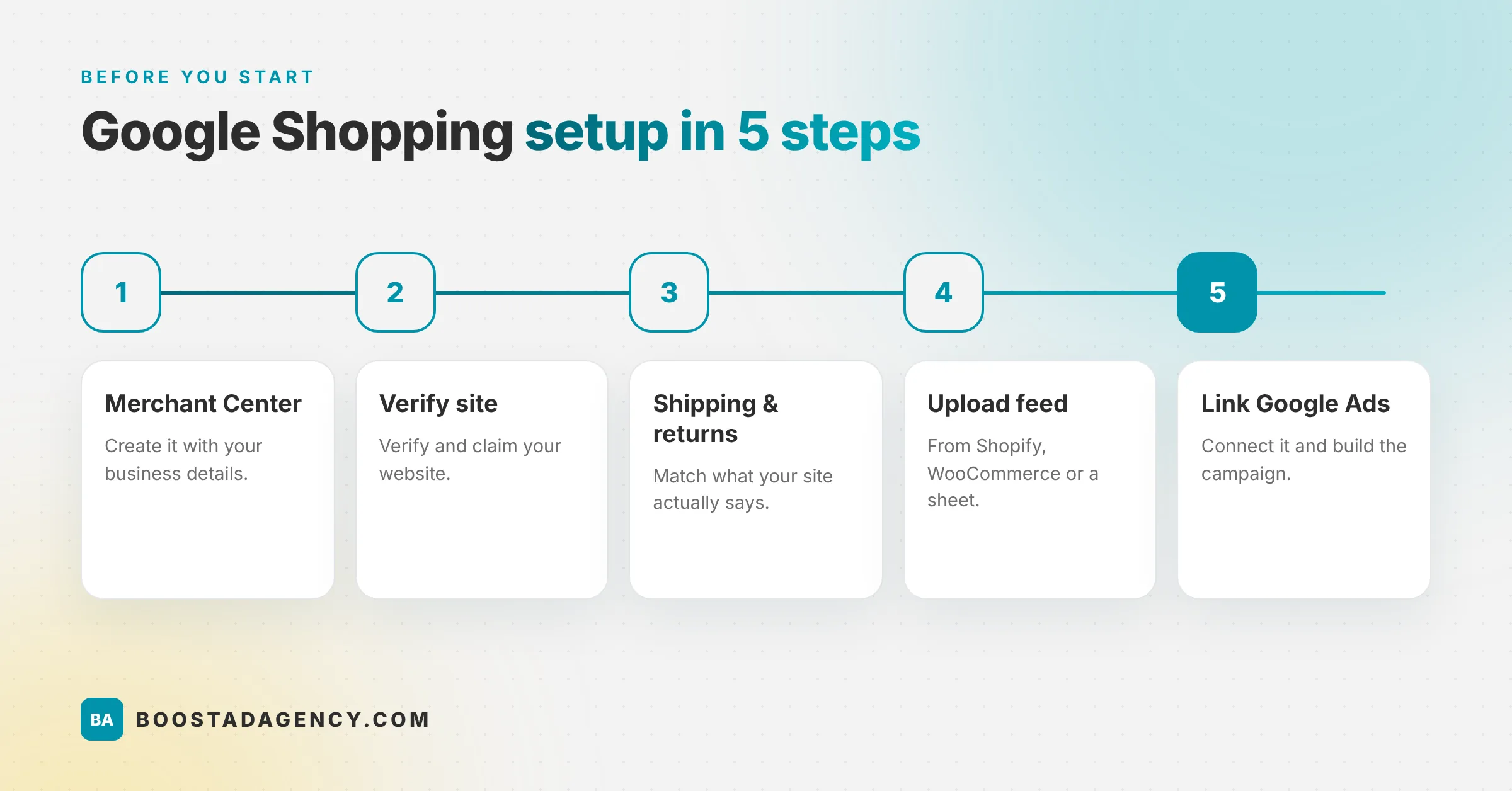
When a new store comes to us, setup usually goes in roughly this order. Merchant Center gets created with the proper business details. The website gets verified and claimed. Shipping and returns settings get filled in to match what the site actually says (people skip this, then wonder why products get flagged). The feed goes in, usually straight from Shopify or WooCommerce, sometimes from a spreadsheet. Google Ads gets linked last.
Have a look through the Shopping ads policies before uploading anything. Some products are restricted, a few aren’t allowed at all, and there are rules on how prices and availability need to appear.
How do you build a feed that actually performs?
Titles people would search for. Prices that match your site to the penny. Photos that are clean and clear. The right category on every product. Get those four right and you’re ahead of a surprising number of stores.
Titles first
This is where most stores leave money sitting on the table. “Aurora Tee” means nothing to a shopper and not much more to Google. “Aurora Women’s Organic Cotton T-Shirt, White, Size M” tells everyone exactly what it is.
You don’t have to rewrite 800 titles this weekend. Start with your top twenty sellers, give it a couple of weeks, see if clicks pick up, then keep working down the list. Feed apps and Merchant Center rules can change the titles Google sees without touching the ones on your product pages, so your site can stay exactly how you like it.
Photos
Plain background, product in focus. No “50% OFF” banners, no watermarks, no borders. Google is genuinely fussy here, and image problems are one of the most common reasons we see products knocked out. If you sell clothing or homeware, it’s worth having one plain packshot per product for the feed even if your site uses lifestyle photos everywhere else. Shoppers scanning a row of tiles decide in about a second, and a clear shot of the actual item tends to win that second.
Price and stock
Feed says $29, product page says $34. That’s a flag. Feed says in stock, site says sold out. Another flag. Letting your store platform sync the feed automatically clears up most of this without you doing anything.
How should you set up the first campaign?
One campaign covering your core range, a daily budget you won’t lose sleep over while you learn, and simple bidding. Group products by category or margin so you can see what’s selling. Then (this is the hard part) leave it alone for a few weeks. Early numbers jump around and mean very little.
Start with products that already sell well on your site. They usually sell through Shopping too. If you’ve got items with margins so thin that every ad sale loses money, leave them out for now. Set up conversion tracking before you launch, not three weeks later, or you’ll have no idea what’s working. And check the search terms report regularly so you can add negative keywords for searches that make no sense for you.
Not sure how much to put behind it? Our post on setting a small business ad budget takes the guesswork out.
Standard Shopping or Performance Max?
Performance Max can show your products in Shopping spots too, plus YouTube, Display and a few other places. Once an account has decent conversion history it can do well. For a first go, plenty of stores stick with standard Shopping because you can actually see what’s happening. Have a scroll through r/PPC and you’ll find people arguing about this forever, which kind of tells you the honest answer: depends on the store.
If you’d rather someone else wrangled the setup, our Google Ads management team does this every day.
Why are products being disapproved?
Usually a price or stock mismatch, missing details, an image issue, or a policy problem with the product. Merchant Center shows the reason next to each item. Fix the data at its source, normally your store platform, then give Google a bit of time to recheck.
A handful of disapprovals at the beginning is completely normal. Work through them one issue at a time, starting with whatever’s affecting the most products. Then make a habit of checking the product issues list in Merchant Center once a week, even when nothing looks wrong. Small feed glitches love to creep in after a site update or a price change, and if you don’t catch them your best sellers can quietly drop out of the ads for days.
Conclusion
Key Takeaways
- Google Shopping ads put product photos, prices and shop names straight into search results.
- You’ll need Merchant Center, a verified site, a clean feed and linked Google Ads.
- Better titles and photos make a real difference.
- Keep feed prices and stock in line with the website.
- Start with one simple campaign and be patient with it.
Shopping ads get your products in front of people who are already halfway to buying. Get the feed right, start small, and let the data steer what you do next. When you’re ready to push harder, our team’s happy to help
Written by Boost Ad Agency Team
Boost Ad Agency specializes in paid advertising, e-commerce, ad approvals, and restricted-niche campaigns across Google, Meta, TikTok, YouTube, Pinterest, and Snapchat. The team works with industries including peptides, CBD, crypto, healthcare, forex, and other restricted markets, with experience in campaign management, compliance, and scaling.
Related Blogs
Just Schedule a Call or Fill the Inquiry Form!!